
Build Log #4: All 24 Prompts That Built My Blog — Fully Revealed
The complete 24 prompts I used to build aicraftlog.com with Claude Code — including the secret trick of showing AI a screenshot instead of writing long instructions.
In the previous post, I showed you how to install Claude Code and write the first command.
This time, I'm revealing every command I gave, in what order, to complete aicraftlog.com.
The Key to Prompting: Show, Don't Tell
Giving commands to AI — prompting — matters.
But instead of writing long descriptions, showing a screenshot of a blog you like is far more effective.
AI analyzes images and understands layout, colors, and structure all at once. One screenshot beats a hundred words of explanation.
How I Actually Did It
Step 1: Find a blog you like and take a screenshot.
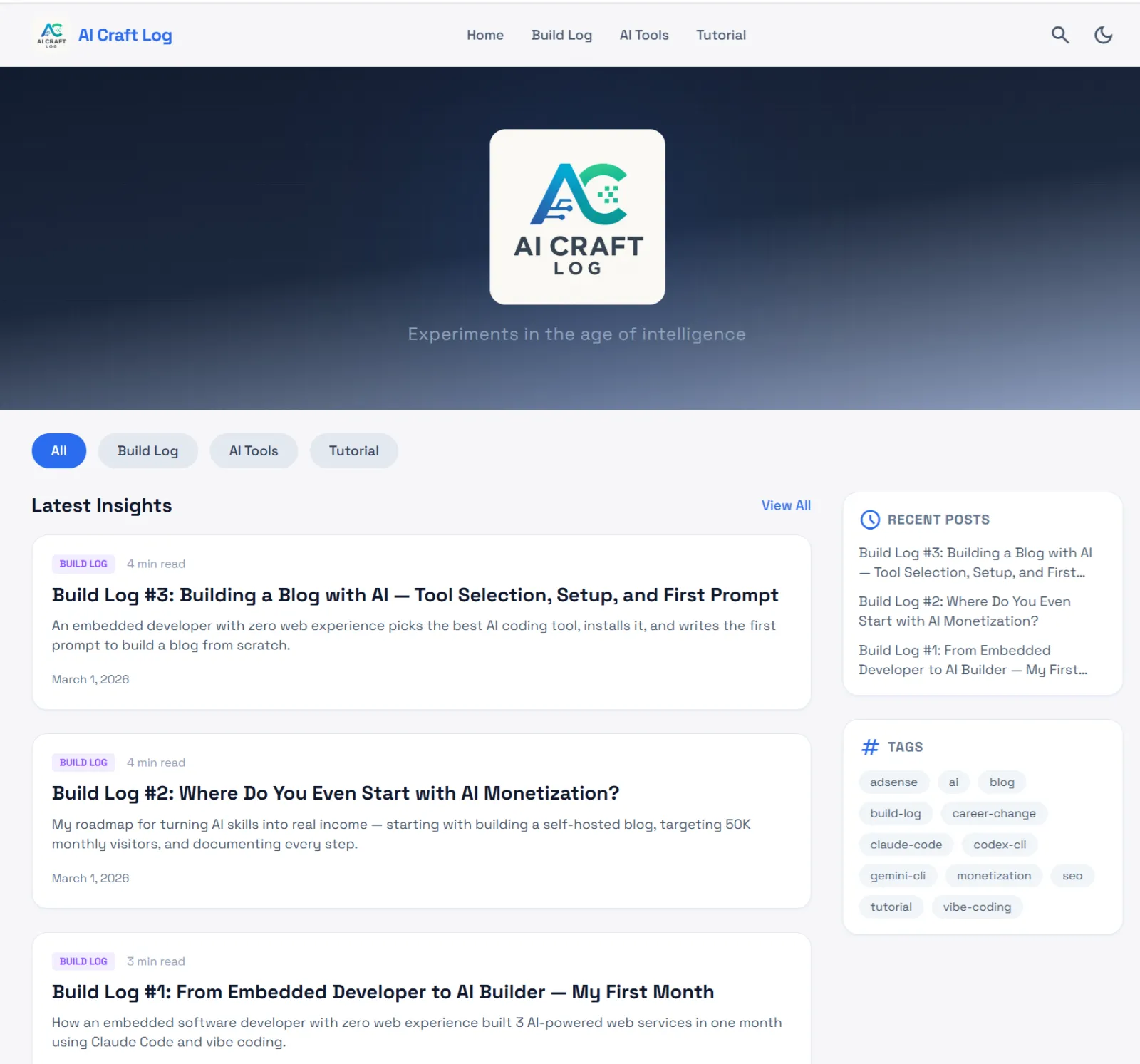
Step 2: Drag & drop the screenshot into the Claude Code terminal, then type:
I want to build a blog like this. The purpose is to write articles about making money using AI. I want it to be a clean, easy-to-read blog. I'd also like subscription and comment features.

With just this, Claude Code builds the skeleton of the entire blog.
Step 3: Once the skeleton is ready, request details one by one.
Only admins should be able to write posts. I want to schedule posts for a specific publish time.
Make the blog color scheme blue.
Use this logo file for the blog.
This is how the blog was built — start with the big picture, then refine the details one by one.
The final source code is public on GitHub:
🔗 https://github.com/johnehk86/aicraftlog
Reverse Engineering: Making AI Analyze Its Own Work
After the blog was complete, I asked AI this:
Analyze the blog I just built. If someone else wanted to build the same thing, what prompts would they need to give you, and in what order?
The result: 10 phases, 24 prompts.
Here's the full breakdown.
Phase 1: Project Setup (Prompts 1–2)
Like laying the foundation before building a house.
Prompt 1 — Create the Project
Create a Next.js 15 + TypeScript + Tailwind CSS project. Project name: aicraftlog. I'll deploy to Cloudflare Pages. Use Space Grotesk (English), Pretendard (Korean), JetBrains Mono (code) fonts.
Result: Project folder, config files, and starter pages generated automatically.
Prompt 2 — Dark Mode & Theme
Add dark mode support. Default to light mode. Set a blue color scheme as the primary color.
Result: Light/dark mode toggle and the blog's color theme is set up.
Phase 2: Blog Content System (Prompts 3–4)
The core of any blog — writing and displaying posts.
Prompt 3 — Markdown Blog Structure
Create a markdown (MDX) based blog system. Support title, description, date, category, tags, thumbnail, featured flag. Add code syntax highlighting. Include post listing, category filter, tag filter, and related posts.
Result: Write a markdown file, and it automatically becomes a blog post.
Prompt 4 — Custom Components
Create custom components for blog posts. Headings with anchor links, external links opening in new tabs, info/warning/caution callout boxes.
Result: Beautiful callout boxes and auto-linked headings inside posts.
Phase 3: Blog Frontend (Prompts 5–9)
Building what visitors actually see.
Prompt 5 — Layout
Create the blog layout. Header: logo, navigation, search, theme toggle, mobile menu. Footer: newsletter subscribe, links, copyright. Sidebar: recent posts, tag list, category post counts. Add a mobile bottom navigation bar.
Result: Header, footer, sidebar, mobile nav — the blog's skeleton is complete.
Prompt 6 — Homepage
Build the homepage. Gradient background with logo hero section, show 6 recent posts, category filter navigation.
Result: The landing page visitors see first is done.
Prompt 7 — Post Cards
Create a post card component. Two styles: default and featured. Different badge colors per category, reading time display.
Result: Each post appears as a clean, styled card in the listing.
Prompt 8 — Post List & Detail Pages
Create the full post list page (10 posts per page with pagination) and post detail page. Detail page includes: table of contents, 3 related posts, social share buttons.
Result: Click a post and you get the full reading experience with TOC, related posts, and sharing.
Prompt 9 — Category, Tag & Search
Create category pages, tag pages, and a search feature. Search across title, description, tags, and categories.
Result: Visitors can easily find any post they're looking for.
Phase 4: Admin Authentication (Prompt 10)
Only the blog owner should manage content.
Prompt 10 — Admin Login
Create an admin authentication system. Login page, password verification, 24-hour token. Protect admin pages and post APIs behind login.
Result: Password-protected admin access.
Phase 5: GitHub API Integration (Prompts 11–12)
Storing and managing blog posts through GitHub.
Prompt 11 — Post CRUD
Use GitHub API to manage blog posts. List, create, update, delete, and batch delete posts.
Result: Write a post in the admin panel, it saves to GitHub automatically.
Prompt 12 — Edge-Compatible Parser
Create a frontmatter parser that works on Cloudflare Pages. Parse metadata and calculate reading time.
Result: Post metadata works correctly regardless of server environment.
Phase 6: Image Upload (Prompt 13)
Posts need images.
Prompt 13 — Image Upload
Create image upload functionality. Support JPEG, PNG, WebP, GIF. Max 5MB. Return a public URL after upload.
Result: Drag an image while writing, it uploads to the cloud automatically.
Phase 7: Admin Dashboard (Prompts 14–16)
A comfortable admin interface for managing the blog.
Prompt 14 — Dashboard
Create the admin dashboard. Post table with title, date, category, status. Multi-select checkboxes + batch delete. Individual edit/delete/publish buttons.
Result: See and manage all posts at a glance.
Prompt 15 — Rich Text Editor
Create a writing page with a rich text editor. Bold, italic, headings, lists, links, image upload, color. Auto-generate URL slug from title. Save options: draft, publish now, schedule.
Result: A word-processor-like writing experience.
Prompt 16 — Edit Page
Create a page to load and edit existing posts.
Result: Published posts can be edited anytime.
Phase 8: Dynamic Management (Prompts 17–18)
Manage categories and menus without touching code.
Prompt 17 — Category Management
Let me add, remove, and reorder categories from the admin panel.
Result: Need a new category? Add it instantly from the admin page.
Prompt 18 — Navigation Management
Let me edit the navigation menu from the admin panel.
Result: Change menu structure freely without code.
Phase 9: SEO & Extras (Prompts 19–23)
Getting found on Google and preparing for monetization.
Prompt 19 — SEO Optimization
Optimize SEO. Auto-generate sitemap, RSS feed, and meta tags. Hide admin pages from search engines.
Result: Google can properly discover and index the blog.
Prompt 20 — Comments
Add GitHub Discussions-based comments with dark mode support.
Result: Visitors can leave comments on posts.
Prompt 21 — AdSense-Ready Pages
Create pages for Google AdSense approval. About, Privacy Policy, Terms of Service, Contact. Pre-place ad slots.
Result: Ready to apply for Google AdSense.
Prompt 22 — Newsletter Subscription
Add newsletter subscription to the footer and post pages.
Result: Visitors can subscribe for new post notifications.
Prompt 23 — Visitor Tracking
Create visitor tracking with IP-based deduplication. Show daily and total visitor counts.
Result: Know exactly how many people visit the blog.
Phase 10: Deployment (Prompt 24)
The final step — go live.
Prompt 24 — Deploy to Cloudflare Pages
Configure deployment for Cloudflare Pages.
Result: aicraftlog.com is live and accessible worldwide.
After 24 Prompts
This blog is ultimately a bundle of code files.
How to manage that code and deploy it so anyone in the world can visit — that process matters too.
So in the next post, I'll cover how I manage the code with Git and deploy through Cloudflare Pages.
But before that, here are three tips for working better with AI.
3 Tips for Better AI Prompting
1. Don't ask for everything at once
"Build me an entire blog" gives worse results than breaking it into steps. Like building a house: foundation → frame → interior → exterior. Give AI tasks in order, and you get solid results.
2. Check results before moving on
After each command, always verify the output and fix issues before proceeding. This is the secret to stable results.
3. AI is the tool. Planning is your job.
AI writes the code, but you decide what to build. I didn't plan 10 phases from the start either. I began by showing a screenshot and saying "build something like this," then added features one by one. As you talk with AI, the structure takes shape naturally.
Coming Next
Next post: I'll show you how I manage the code with Git and deploy to Cloudflare Pages — the full process from code to live website.
See you in Build Log #5.
I'm an embedded software developer building AI-powered web services with zero web experience. Follow the journey at aicraftlog.com.
Related Posts
Stay Updated
Get notified when I publish new posts. No spam, unsubscribe anytime.