Build Log #3: Building a Blog with AI — Tool Selection, Setup, and First Prompt
An embedded developer with zero web experience picks the best AI coding tool, installs it, and writes the first prompt to build a blog from scratch.
I'm an embedded software developer with zero web development experience. In this post, I'm going to build a blog by giving commands to AI.
I'll cover which AI tool I chose, how I installed it, and the exact first command I gave to start building.
The Big Three of AI
The three major AI companies are:
-
OpenAI → ChatGPT
-
Google → Gemini
-
Anthropic → Claude
Most people have used AI chat to ask questions. But beyond simple chat, there are AI tools that can actually build things — websites, apps, entire projects — when you give them commands.
Think of it this way: Claude is a consultant who gives advice. Claude Code is a developer who actually builds it for you.
Each company has both:
-
OpenAI → ChatGPT / Codex CLI
-
Google → Gemini / Gemini CLI
-
Anthropic → Claude / Claude Code
I'm going to use the developer side of AI to build a blog website.
Why I Chose Claude Code
So which one should I use?
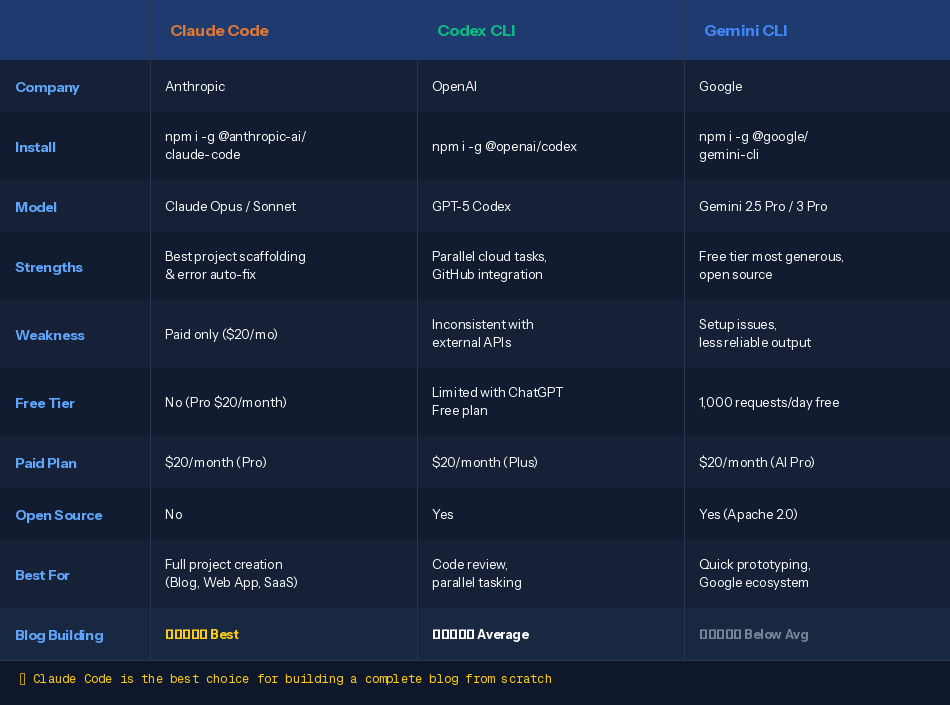
Claude Code is widely regarded as the leading tool for both vibe coding and professional development projects. It creates entire projects directly from the terminal — file management, error fixing, and execution all in one.
OpenAI Codex CLI is a lightweight open-source coding agent that runs in your terminal, using models like o3 and o4-mini in your local workflow. It works with a ChatGPT subscription, but the experience can be inconsistent when used with external APIs.
Gemini CLI is open source (Apache 2.0) with the most generous free tier — 60 requests per minute and 1,000 per day with a personal Google account. However, users report frequent issues with setup and MCP integration, making it difficult to get real value in practice.
So I chose Claude Code.
When you tell Claude Code "build me a blog with Next.js," it handles everything — project structure, code, configuration, deployment setup. When errors occur, it detects and fixes them automatically. This means someone with zero web development experience can build a complete blog in 3 days.
From Installation to First Command
Here's a summary of the setup process, organized with help from Claude.
1. Prerequisites
Before starting, you need:
-
Claude Pro subscription ($20/month) — Claude Code doesn't work on the free plan
-
VS Code (free, code.visualstudio.com)
-
Git (Git for Windows required on Windows)
I recommend using AI chat to guide you through each installation in detail.
2. Installing Claude Code
The native installer is now the recommended method. No Node.js required.
Mac/Linux:
curl -fsSL [https://claude.ai/install.sh](https://claude.ai/install.sh) | bash
Windows (PowerShell):
irm [https://claude.ai/install.ps1](https://claude.ai/install.ps1) | iex
Git for Windows is required on Windows.
Verify installation:
claude --version
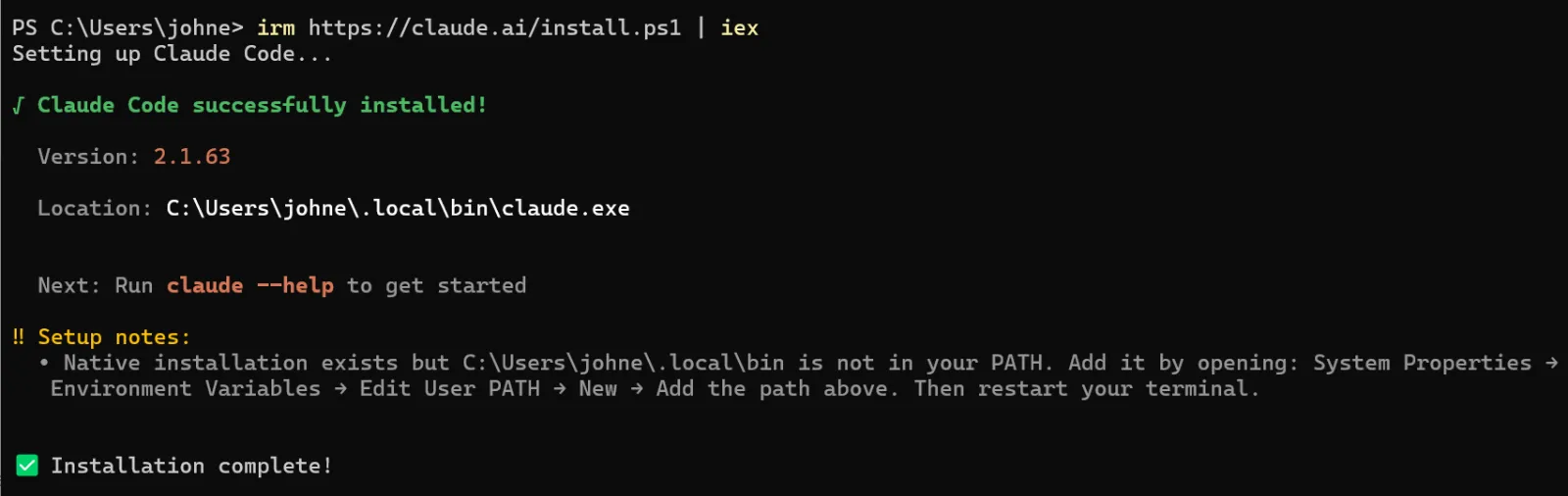
If the version doesn't appear after installation, the PATH wasn't set properly. Copy the command below, close PowerShell, and reopen it:
[Environment]::SetEnvironmentVariable("PATH", "$env:PATH;$env:USERPROFILE\.local\bin", [EnvironmentVariableTarget]::User)

3. Login
Type claude in your terminal. A browser window opens automatically. Log in with your Claude Pro account and you're ready.
4. Starting a Project in VS Code
mkdir my-blog

cd my-blog

code .
When VS Code opens, open the terminal (Ctrl + ` or Terminal → New Terminal):
[Uploading image...]
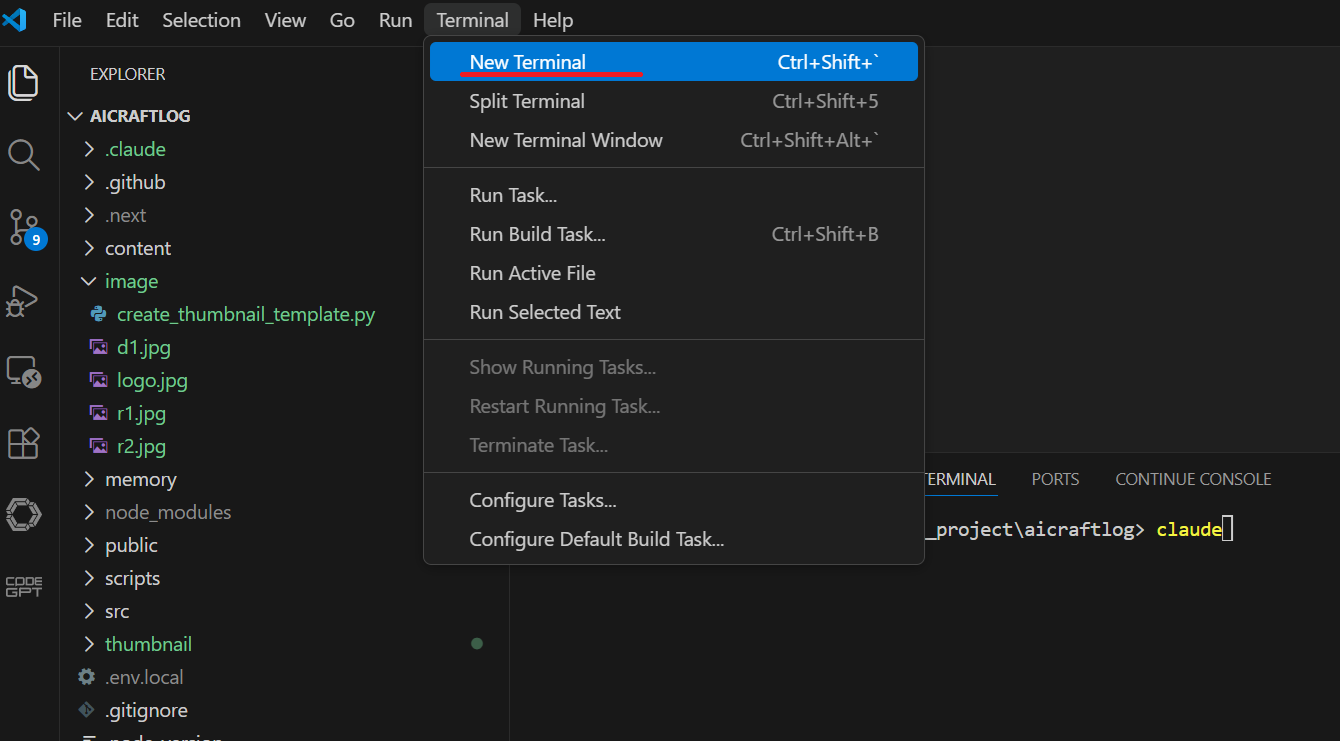
claude
Once Claude Code is connected to VS Code, you can start giving it commands to build things.
These commands are called prompts — instructions you give to AI. The quality of your prompts determines the quality of your results.
The First Prompt — Building the Blog
With Claude Code running, I typed:
Create a personal blog using Next.js 15 and Tailwind CSS.

Requirements:

- App Router

- Markdown (MDX) based writing system

- Categories: Build Log, AI Tools, Tutorial, Thoughts

- Dark mode toggle

- SEO optimization (sitemap.xml, robots.txt, Open Graph meta tags)

- Mobile responsive design

- Single column list layout (title + summary + date)

- Deployable to Cloudflare Pages

Blog name: AI Craft Log

Domain: [aicraftlog.com](http://aicraftlog.com)
Claude Code received this prompt and automatically created the file structure, wrote the code, and installed all necessary packages.
This is a simplified version of the first prompt. In total, I used 24 prompts to complete this blog.
Coming Next
Next post: I'll reveal all 24 prompts that built this entire blog.
The exact order I gave commands, what was created at each step, and how I handled problems along the way — everything out in the open.
See you in Build Log #4.
I'm an embedded software developer building AI-powered web services with zero web experience. Follow the journey at [aicraftlog.com](https://aicraftlog.com/).
Related Posts
Stay Updated
Get notified when I publish new posts. No spam, unsubscribe anytime.